
How to save recipes with the Share Extension
Shallot installs an iOS share extension so you can save recipes from any app — Instagram, TikTok, Safari, Messages — without ever leaving what you're doing. Here's how to find it the first time, and how to pin it as a favorite so it's always one tap away.
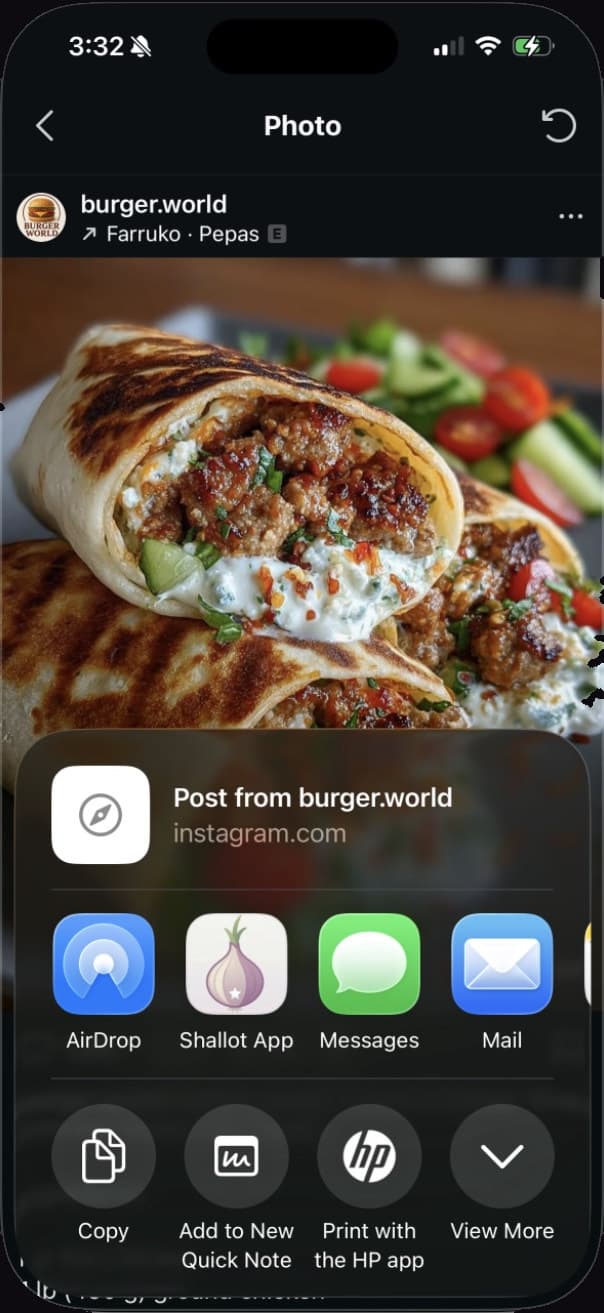
The iOS share sheet with Shallot ready to save a recipe.
Finding Shallot the first time
If you've just installed Shallot and you don't see it in the share sheet yet, that's normal — iOS hides newly installed extensions in a secondary list. Here's how to surface it.
Open the app where you found a recipe
Instagram, TikTok, Safari, Messages, Pinterest, YouTube — any app on your iPhone that lets you share a link or post.
Tap the Share button
Look for the square-with-up-arrow icon. In Instagram it's the paper airplane under a Reel. In TikTok it's the curved arrow on the right side of a video. In Safari it's in the bottom toolbar.
Scroll the app row to the right
When the iOS share sheet slides up, you'll see a horizontal row of app icons. Swipe it left until you reach the very end and tap More (the three-dot circle).
Find Shallot in the list and tap it
Scroll the list of apps until you see Shallot, then tap it once to send the recipe. Shallot will open briefly, save the recipe to your library, and return you to where you started.
Pinning Shallot as a favorite
Adding Shallot to your share sheet favorites means it shows up first in every app — saving a recipe becomes a single tap.
Open the share sheet from any app
Same as before — tap the Share button on a recipe link, photo, or video.
Tap More at the end of the app row
Swipe the row of app icons all the way to the right and tap the three-dot circle labeled More.
Tap Edit in the top-right
The Apps list opens. In the top-right corner you'll see an Edit button — tap it to enter edit mode.
Tap the green plus next to Shallot
Find Shallot under Suggestions or in the alphabetical list and tap the green ➕. Shallot moves up into your Favorites.
(Optional) Drag Shallot to the top
Use the ≡ handle on the right of the row to reorder Shallot — drag it to the top of the Favorites list so it's the first app you see every time.
Tap Done
From now on, Shallot will appear at the front of the share sheet's app row in every app. Saving any recipe is one tap away.
Troubleshooting
I don't see Shallot in the More list
Make sure Shallot is installed and that you've opened the app at least once after installing — iOS sometimes needs the first launch to register the share extension.
I added Shallot but it's still not showing in the share sheet
Force-quit the app you're sharing from (swipe up in the App Switcher and flick the app away), then reopen it. iOS occasionally caches the share sheet and a fresh launch fixes it.
Still not working
Restart your iPhone. It clears the iOS extension cache and almost always resolves stubborn cases. If you're still stuck, email us — we'll help you sort it out.
Still need help?
support@shallot.recipes